
What to do after installing EDGECAM and restarting your computer
Welcome to the guide for what to do after installing EDGECAM and restarting your computer. Follow these simple steps to get started.
This comprehensive guide provides two easy ways to complete your restart:
- Video Tutorial: Watch our step-by-step video for a clear visual guide.
- Detailed Instructions: Follow our written instructions for a text-based approach.
Still Need Help?
Our friendly support team is here to assist you! Feel free to call us at 011 663 2600 with any questions about the restart.
Welcome to our guide for what to do after installing EDGECAM and restarting your computer. Follow these easy steps to complete the process.
Step 1:
Open EDGECAM and click on ‘New Milling Part’.
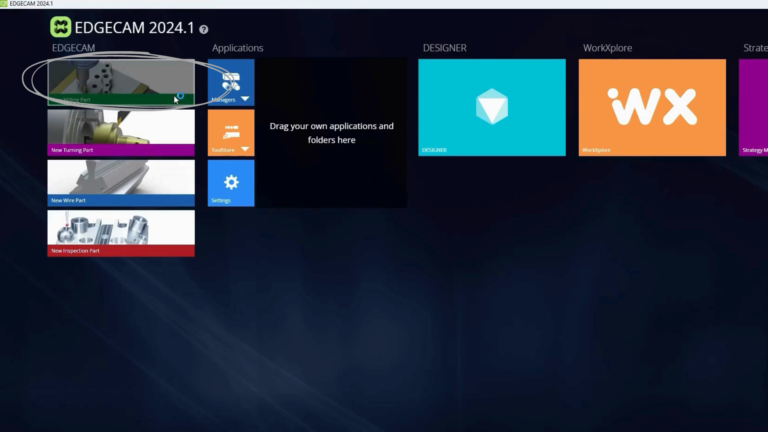
Step 2:
The Migration Wizard setup will appear. Click ‘Yes’ to proceed.
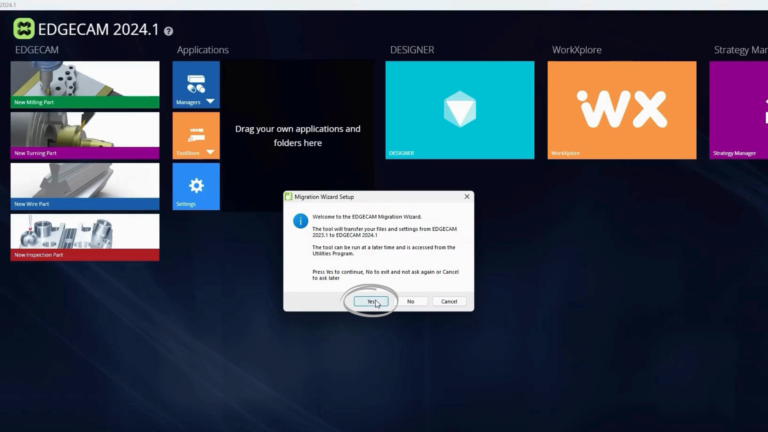
Step 3:
Navigate to the ‘Downloads’ section, then click on ‘Software’.
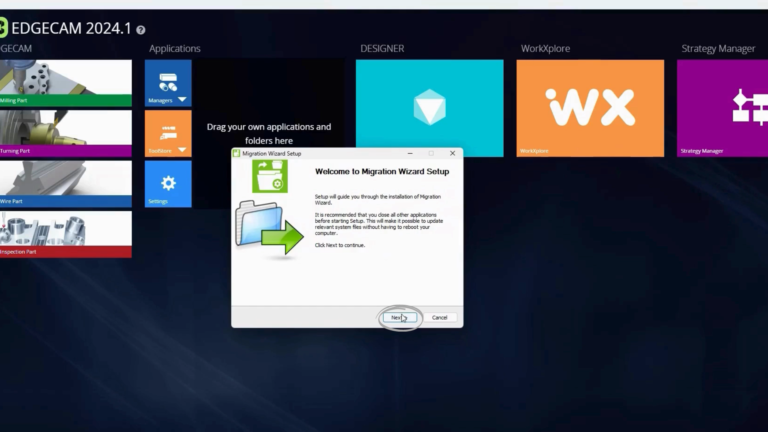
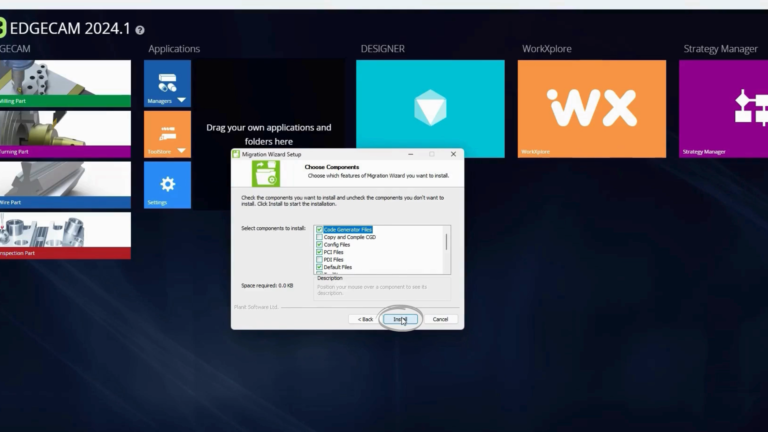
Step 4:
This process may take some time, so please be patient.
Step 5:
Once the installation is complete, click ‘Close’.
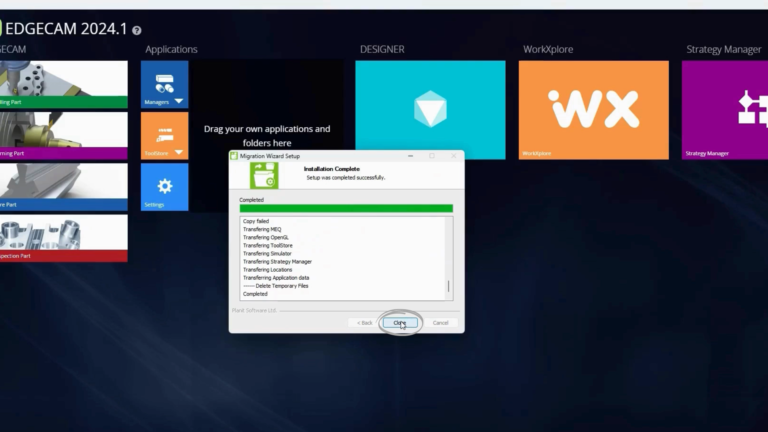
Step 6:
You will then be prompted to reload the active theme. Click ‘Yes’ to confirm.
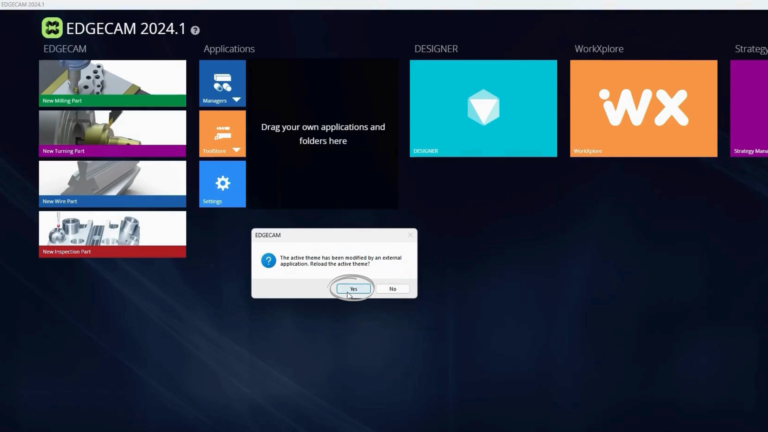
And that’s it! Your EDGECAM is now fully set up and ready for use. Thank you for choosing EDGECAM.
Encountered issues during your restart and opening of EDGECAM? Our dedicated support team is just a click away! If you faced any challenges while completing the online installation process, feel free to create a support ticket directly through our website. Our team is readily available to answer questions and ensure a smooth transition into the world of EDGECAM.
LOCATION:
OFFICE HOURS:
Monday – Thursday: 08:00 – 17:00
Friday: 08:00 – 14:30
CONTACT US:
Phone: +27 11 663 2600
Email: info@stillam.com